Setup guide
About ten minutes, once. You need your Android phone, your watch and your Tesla sign-in. The pictures show the phone app with demo data.
Before you start: the Garmin Connect app is installed on your phone and your watch is paired with it. Your watch reaches ParkArrow Link through Garmin Connect, so nothing works without it.
-
1. Install ParkArrow Link on your phone
Get it from the Download page. Open it: the first screen says what the app does and what you need.
The app has four setup steps. You can leave any of them and come back later from the app's Home screen, under Setup steps.
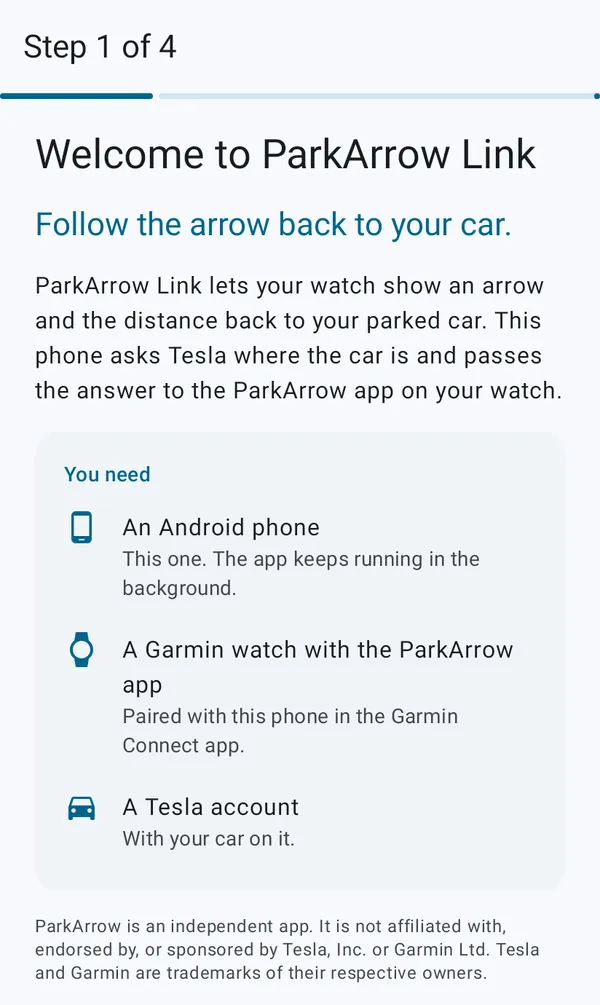
Step 1 of 4: welcome -
2. Sign in to Tesla
Tap Sign in to Tesla. Tesla's own sign-in page opens. Sign in there and allow ParkArrow to read your vehicle's information and location. Then the page sends you back to the app.
- Your Tesla password is typed only on Tesla's page. ParkArrow never sees it.
- If the app does not come back by itself, a page on this site opens with a button Open ParkArrow Link. Tap it.
- Several cars on your account? Choose one later in Settings → Car.
- When an app reads your car's position, the car's screen shows a location-sharing icon. That is Tesla's doing and expected.
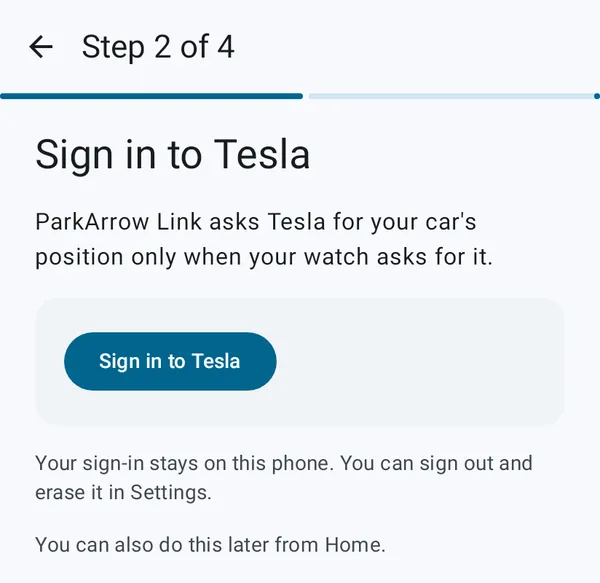
Step 2 of 4: sign in -
3. Install ParkArrow on your watch
Install ParkArrow from Garmin's Connect IQ store: in the Connect IQ Store app on your phone, search for ParkArrow and install it on your watch. The phone app's Open the watch app page button takes you there once the store page exists (see Download).
If you open ParkArrow on the watch before the phone app is set up, it says Needs an Android phone with ParkArrow Link. That is expected.
-
4. Pair your watch
- In ParkArrow Link, tap Start pairing. The phone waits two minutes for your watch.
- Open ParkArrow on the watch. It shows a 6-digit code.
- On the phone, in Type the code your watch shows, type that code and tap Pair. The phone shows Code accepted. Finishing on the watch… and then Watch paired.
The car's position reaches your watch through the Garmin Connect app on this phone.
Typing the code makes sure that your watch, and not some other app on the phone, is the one being paired: the phone never asks you to confirm a request, it only pairs the watch whose code you typed. If more pairing requests arrive than one watch sends, the phone stops with Another app is interfering with pairing; see Help. Up to three watches can be paired; remove one in Settings → Paired watches.
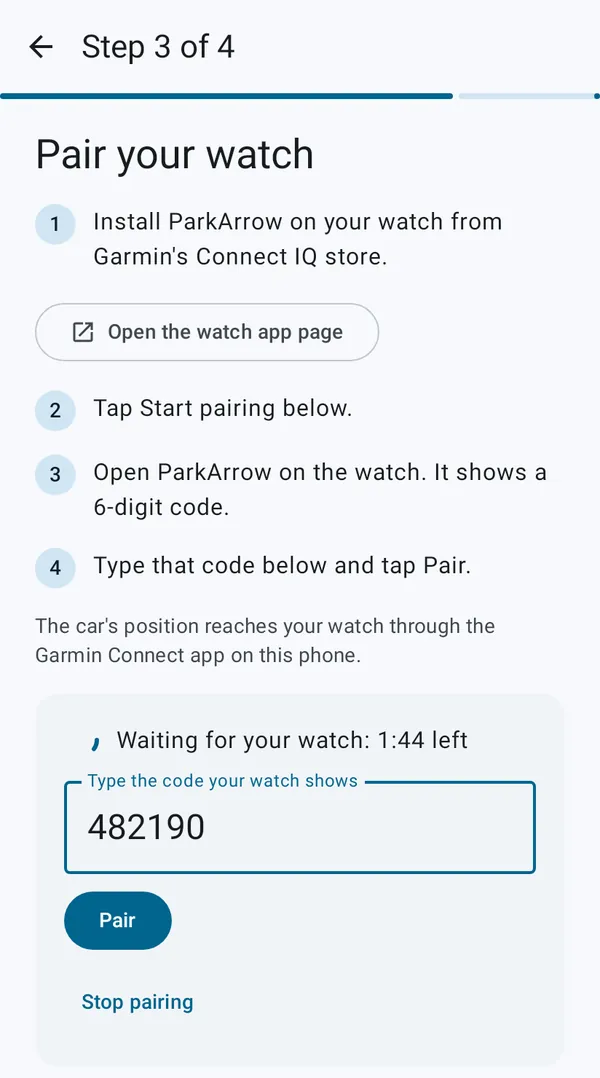
Type the code your watch shows -
5. Keep it running
Your watch can ask at any time, so ParkArrow Link stays running in the background with a quiet notification. Two settings keep it that way:
- Allow notifications. The notification shows that the app is ready and tells you when something needs fixing.
- Don't restrict the battery. Tap Open settings and choose Unrestricted for ParkArrow Link. Otherwise Android may stop the app, and your watch gets no answer.
While it waits, the app does nothing: it does not ask Tesla in the background.
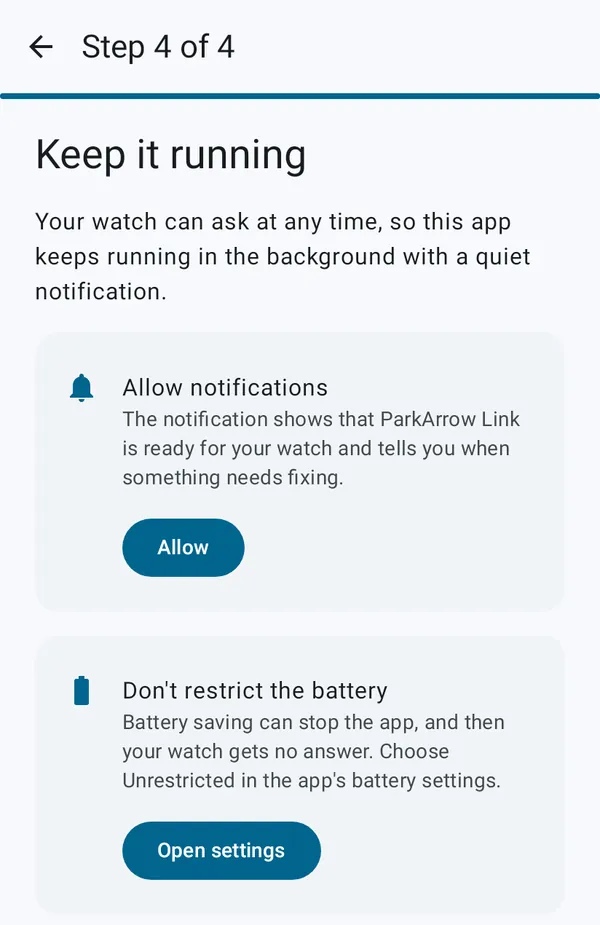
Step 4 of 4: keep it running -
6. Walk back to your car
- Open ParkArrow on your watch. Go outside if it says Finding GPS… go outside.
- Walk a few steps: the compass needs a little movement to settle on a direction.
- Follow the arrow. The line below the distance says how fresh the car's position is, for example Parked · 3 min ago or Last seen 3 h ago · unconfirmed.
- The watch buzzes and shows At the car when you are within about 3 m.
A sleeping car is not woken up unless you turn on Settings → Wake the car if needed. When it sleeps, the watch points to the last position Tesla reported, which is normally where you parked.
Something not working? The phone app's Home screen has a checklist; the Help page explains each row.
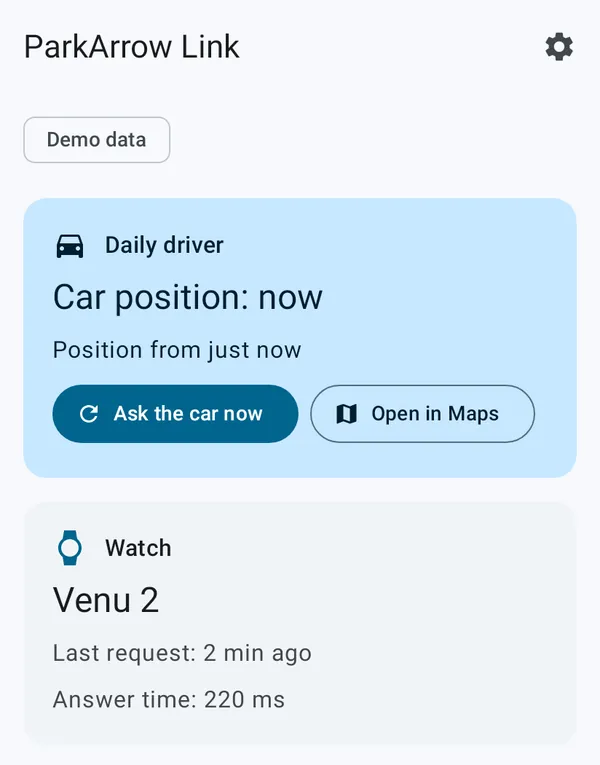
Home screen (demo data)


Please don't use ParkArrow while driving.